Which platforms are supported?+
Android and iOS are supported, with a built-in multi-language UI including Chinese and English.
Do I need to be online?+
Core features like playback, subtitle study and collections work locally first; AI definitions and translation need a connection.
Will background playback be interrupted?+
No. iSub Player keeps playing via a foreground/lock-screen notification service, with play, pause and track controls in the notification shade.
Where do subtitles come from?+
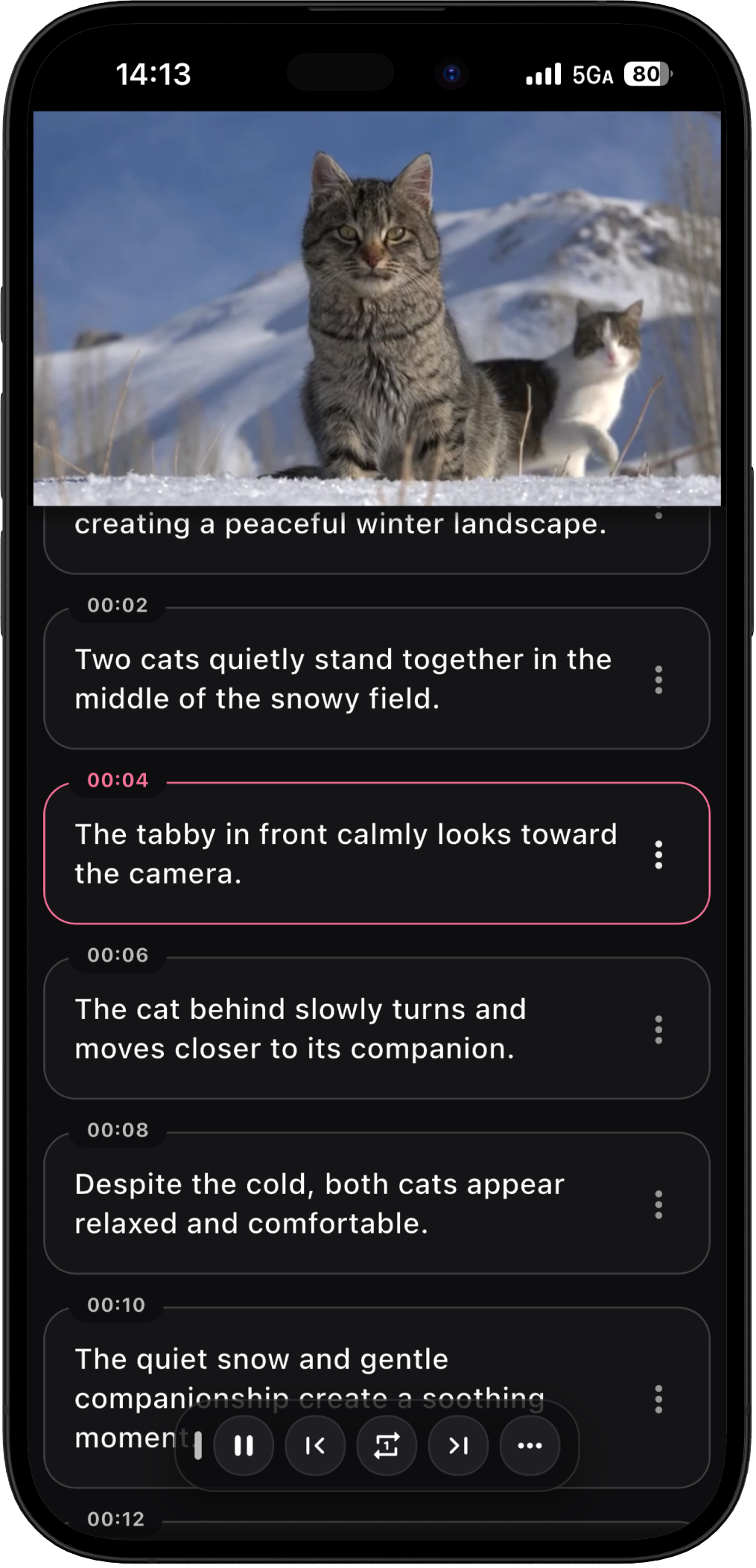
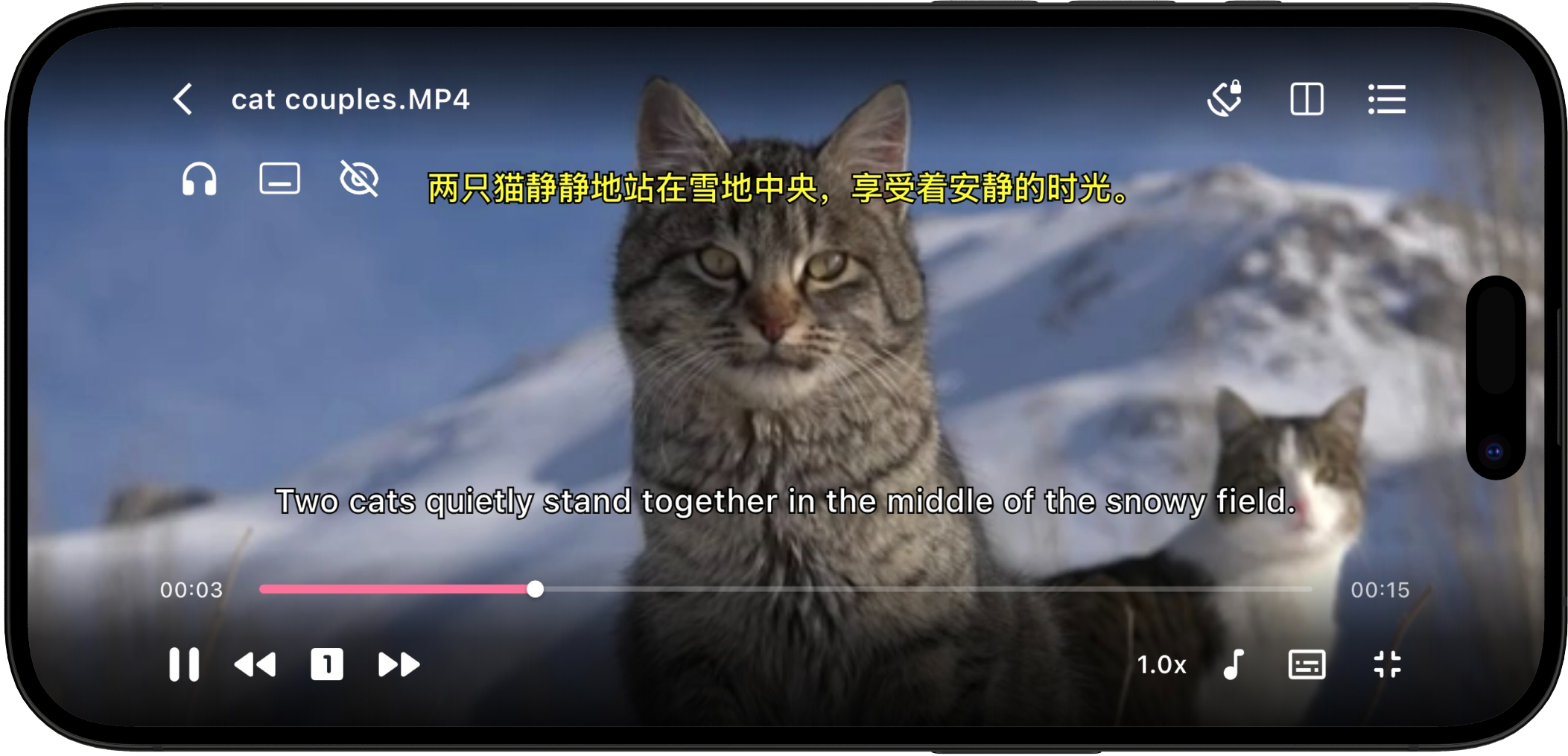
Load external subtitles in .srt, .ass and more, or extract and export from embedded streams; best with bilingual display and AI definitions.
Are my collections safe?+
Collections are stored locally; you can export them periodically for backup.
What's the difference between Free and Member?+
Basic playback and subtitle study are free; Pro in-app purchase and activation codes unlock advanced features.
Which video / audio formats are supported?+
iSub Player decodes with media-kit (libmpv), supporting most common containers such as MP4, MKV, MOV, AVI, FLV, WebM (video) and MP3, M4A, AAC, FLAC, WAV, OGG (audio). Exact support depends on the platform's libmpv decoders. HDR video plays normally (you can disable HDR in settings to use the standard engine).
Which subtitle formats are supported?+
Supports embedded subtitle tracks plus external subtitles: .srt, .ass, .ssa, .vtt. Import external subtitles in the player and load both primary and secondary tracks for bilingual display.
How do I import video / audio?+
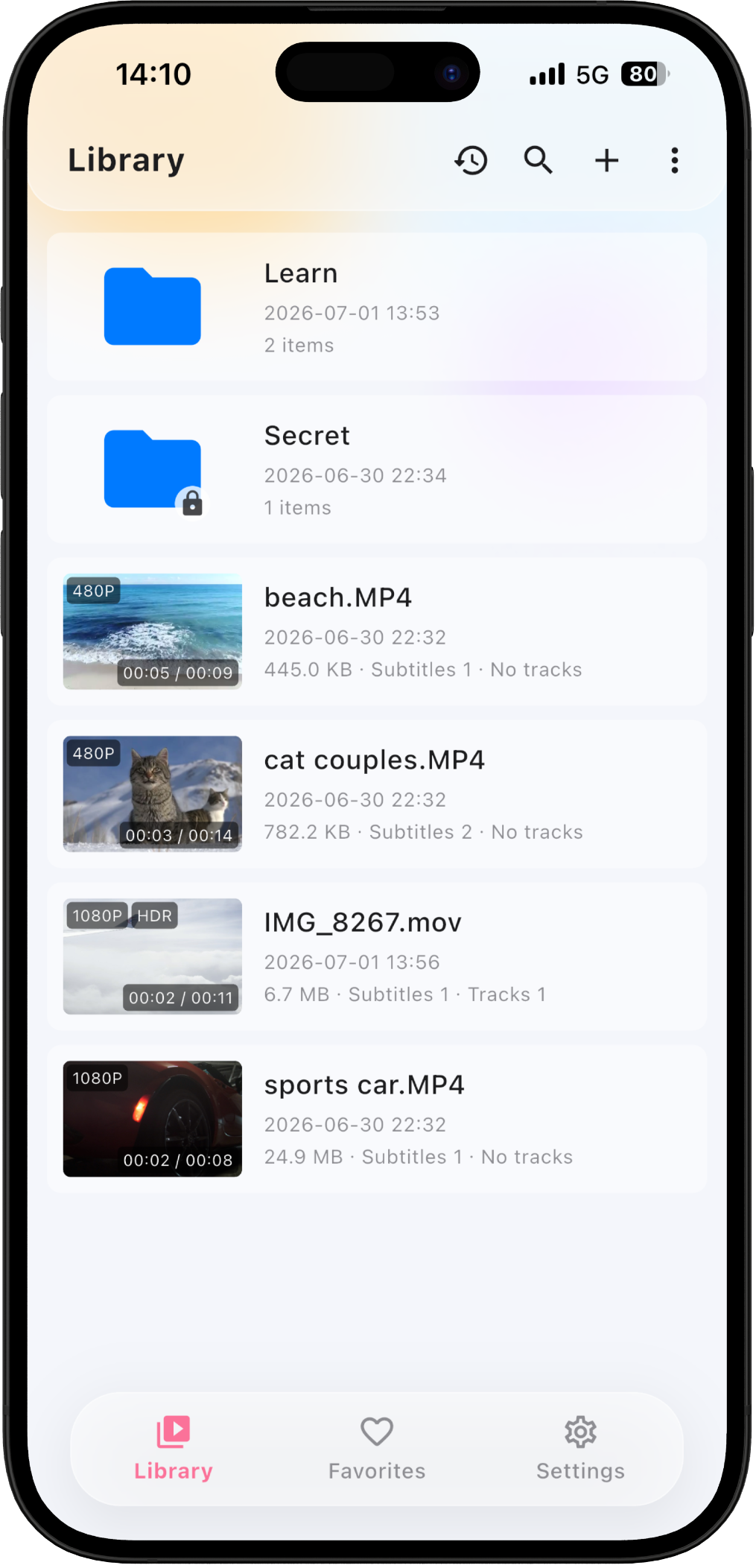
In the Library, tap "Import media" or "Import folder", or share from your system file manager / photo library to iSub Player.
How do I import subtitles?+
Open "Subtitle settings" in the player, choose "Import subtitle" to load a .srt/.ass/.ssa/.vtt file as external; then pick primary/secondary tracks for bilingual display.
Why won't the video play?+
Make sure the file isn't corrupted, the codec is supported, and your OS version meets requirements. Some codecs (e.g. rare high-bitrate or special containers) may not be supported by the current platform decoder.
Why don't subtitles show?+
Common causes: subtitle encoding isn't UTF-8 (try re-encoding after import), subtitle is out of sync with the media (adjust with "Delay"), or subtitles are hidden. Check that primary/secondary tracks are enabled in "Subtitle settings" and that the style color doesn't fully overlap the background.
What's included in Pro?+
Pro is a one-time purchase for lifetime use, unlocking: ad-free, unlimited AI analysis / lookups / collections, sentence loop, dark mode, custom shortcuts, audio extraction, folder encryption, custom subtitle styles, custom AI prompts and more.
How do I restore purchases?+
On the "Member Center / Upgrade Pro" page tap "Restore Purchase" and use the same Apple ID (App Store in-app purchase) to reactivate Pro. For activation-code licenses, re-enter the code; if it's bound to another device, follow the prompts to complete device migration.
How do I cancel a subscription / get a refund?+
Pro is a one-time purchase — no renewal or auto-charge. For App Store in-app refunds, request through Apple's "Purchase History" following Apple's process; for activation-code refunds, contact us via the email below.
How do I report a bug or suggestion?+
Submit via "Settings → Feedback" or in-app "Me → Feedback"; or email isub@hopemach.cn with your device model, OS version, steps to reproduce and a screenshot.